

How to manage your events with Claude and ChatGPT using AI Assist
Four ways to use Ticket Tailor’s AI Assist at every stage of your event, from setup to post-event reports, plus how to connect it to Claude or ChatGPT.
Ask any Event Creator what they’re short of and the answer is nearly always the same: time!
Some parts of the job will always need you. Cleaning toilets (though we’re sure that would be a welcome addition), setting up stages, sweet-talking your headliners… the list goes on.
The admin, though? That’s a different story. AI Assist isn’t about taking the human connection out of your events. The people, the personality and the magic are still all yours. It's simply about automating the time-consuming, repetitive stuff it takes to get your event live and selling tickets. So you get your evenings back.
So, it's time for you to discover... ✨ Ticket Tailor's AI assist; and MCP for ChatGPT and Claude ✨
Psst, the steps for connecting Claude or ChatGPT are at the bottom of this post.
What is Ticket Tailor’s AI Assist?
With Ticket Tailor's AI Assist, you can connect ChatGPT, Claude or your AI tool of choice (providing it supports custom MCP connections) to your Ticket Tailor account and manage your events just by asking. Want 30 more general admission tickets? Need a skill to report on your week-on-week sales? Or maybe you want to set-up and schedule an event to go on sale? Type it, and it's done.

Think of it as an assistant who never needs a coffee break… perfect for on-the-go Event Creators. Since launching our AI connectors they’ve gone down a treat. Over 750 Event Creators used AI assist to help sell tickets online in October 2026 alone.
So, in the spirit of handing you back time for the good bits, here are four ways to put it to work.
- Event setup: build events, ticket types, capacity limits and time slots.
- Selling: create discount codes, track sales, gauge waitlist demand and manage memberships.
- Event day: check arrivals, release unused allocations and close sales early.
- After the event: pull reports, charts and insights to plan your next one.
How can AI Assist help you set up an event?
Setting up your events is probably the most sensible place to start. If you've sold tickets with Ticket Tailor before, you’ll know it’s already pretty painless, as you can duplicate details across events to avoid starting from scratch. AI Assist just takes it one step further.
Once your Ticket Tailor box office is connected to Claude or ChatGPT (there's a how-to at the end), describe how you want your event set up and it'll build it for you. That includes creating your ticket types, capacity limits, holding back allocations, setting advanced rules for early bird drops, and even setting up thousands of timeslots for your next series (with exceptions for certain slots).
Selling extras? It can set up your Products too, from festival tote bags to pre-ordered programmes, so they're ready to go alongside your tickets.
Try this: “Create a new event called Beginners’ Pottery Workshop on Saturday 6th March 2027 at 2pm at The Clay Room, with a Standard ticket at £35 and an Early bird ticket at £28. Put 10 Standard and four Early bird tickets on sale. Then show me the event details.”
Thinking about switching ticketing platforms?
If you’re dreading the move, AI Assist could take a lot of the heavy lifting out of it. Switching from Eventbrite? The Eventbrite importer will save you even more time.
Go on, take it for a spin. Your first five tickets are on us, and after that you only pay when you sell a paid ticket. No pressure, but feel free to have a proper poke around.
How can AI Assist help while you’re selling tickets?
The fun doesn’t stop once you’re on sale! There are plenty of ways to use AI Assist while tickets are selling.
Create discount codes for promoters and partners
Give each promoter, partner or influencer their own discount code, all in one go.
Try this: “Create 10% off discount codes for each of my five promoters that apply to all ticket types for [event name] and expire on 31st May 2027. Then show me the details of the discount codes you just created.”
A week later, ask which code has sold the most. Instant league table (and hopefully lots of thank-yous).
Track sales and demand without the cross-referencing
Keep tabs on sales without digging around the platform. Ask how this week compares with last, which ticket type is slowest, or whether your early birds are flying fast enough to release the next tier.
The same goes for gauging demand from waitlist signups: just ask. Once you know this, you can use AI Assist to react to slow dates, like creating a flash discount code or closing dates you want to consolidate into one.
Manage Memberships for clubs, venues and communities
Run a club, venue or community with loyal regulars? AI Assist has your back there too. Set up a new membership type with its own validity dates and benefits, check how many memberships are currently active, or void one that's no longer needed.
Try this: “Create an annual membership that’s valid for 12 months from purchase, with priority booking as a benefit.”
Confirm offline payments in one go
If you take offline payments, such as invoices or bank transfers, you can confirm them all at once instead of hunting through your Dashboard to confirm each one.
How can AI Assist help on event day?
Event day is crunch time, and arguably when every minute matters most. No need to stop scanning and dig through your Dashboard: just ask how many people are still to arrive.
Maybe the guest list or sponsors didn't use their allocation? Ask AI Assist to release those tickets so latecomers can buy a last-minute ticket. It goes both ways… stressed about space? Ask it to close sales early. Wondering when to crack open the VIP drinks? Ask how many VIPs have checked in, and pour accordingly.
Try this: “Issue one free ticket for [event name] at [venue] to [your name] ([your email address]), email them the ticket, and then confirm the issued ticket details.”
Heads up: issuing tickets through AI Assist uses one credit per ticket, even when the ticket is free.
How can AI Assist help after your event?
The lights are off, the chairs are stacked, and someone’s still looking for their coat. Now for the fun bit: finding out how it all went.
Your Dashboard already has all the numbers. AI Assist simply pulls them together however you like. Ask Claude or ChatGPT for a post-event report covering sales by Ticket type, discount code usage, revenue and no-shows (tickets issued compared with check-ins), or fire off a quick question on the fly.
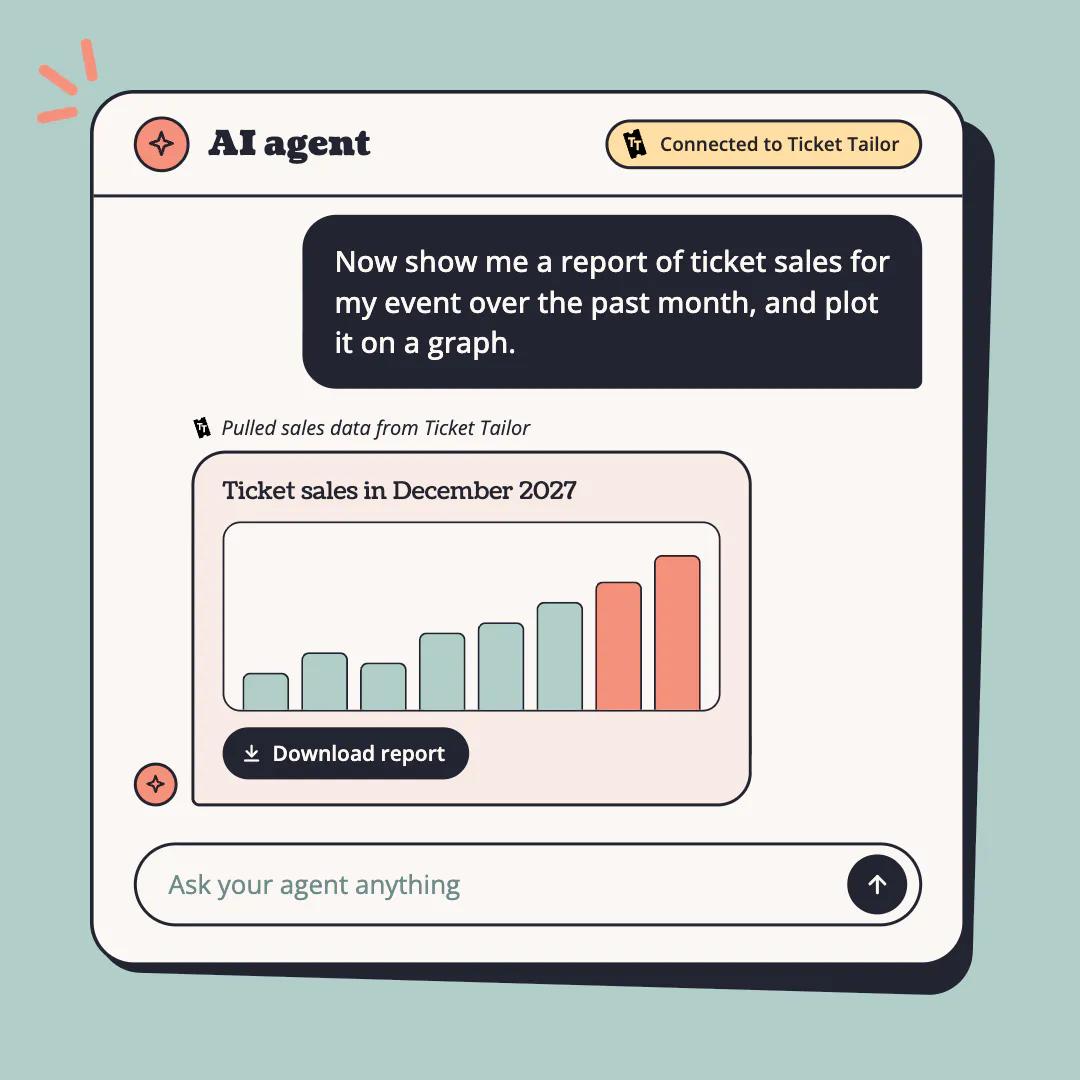
It’ll crunch the numbers and turn the results into charts and insights you can share with your team or use to make your next event even better. No need to be an Excel pro, or to spend an evening wondering why your pie chart looks more like a pizza.
Try this: “Show me a report of ticket sales for [event name] over the past month, and plot it on a graph.”
It’s not just about looking back, either. Ask it to look across your whole year of events and spot your best-selling days, times and price points, so you can make data-driven decisions for next year.
How do I connect AI Assist to Claude or ChatGPT?
AI Assist works with Claude, ChatGPT or any AI tool that supports custom MCP connections. Whichever you use, setup takes a few minutes.
Step 1: Create an API key in Ticket Tailor
Create an API key in your Ticket Tailor account and copy it somewhere safe. You’ll need it to connect your AI tool.
When you create the key, keep ‘Hide personal data from responses’ switched on. This stops your customers’ personal details from being shared with the AI tool.
Step 2: Connect Ticket Tailor to Claude
You’ll need a paid Claude plan (Pro or above).
- Log in to Claude, open the Ticket Tailor connector in Claude’s directory and click ‘Connect’. Alternatively, go to ‘Settings’ > ‘Connectors’ in Claude, select ‘Browse connectors’, find Ticket Tailor and click ‘+’.
- When you’re asked to authenticate, paste in your API key.
- That’s it! Ticket Tailor now appears as a connector in Claude. When it’s toggled on, you're good to go.
Or connect Ticket Tailor to ChatGPT
- Sign up or log in to ChatGPT.
- Go to ‘Plugins’ in the left-hand toolbar and search for Ticket Tailor.
- Click ‘+’, then ‘Connect Ticket Tailor’.
- When you’re asked to sign in to Ticket Tailor, paste in your API key. That’s it!
Need a hand? Read the full AI Assist setup guide in the help centre.
But how do I use AI Assist safely?
AI Assist is a brilliant sidekick, but you’re still the one running the show. A few simple habits will keep things safe and sensible.
- You’re still the boss. AI Assist knows your Box office, but it doesn’t know your event like you do. It can set things up and pull the numbers, but the calls are yours.
- Keep personal data hidden. Leave ‘Hide personal data from responses’ switched on when you create your API key. Your ticket buyers trusted you with their details, so keep them out of AI chats.
- Check before you change. For anything big, like bulk discount codes or closing dates, ask it to show you what it’s about to do first. Many AI tools can also be set to ask before every action. In Claude, you can choose to have it always ask before using a connector tool.
- Be careful what you feed it. Avoid pasting emails, documents or web pages from people you don’t know into a chat where AI Assist is switched on. Content like that can hide instructions an AI might follow.
- Treat your API key like a password. Don’t share it. If you think it’s been exposed, delete it in Ticket Tailor and create a new one.
- Double-check before you share. AI can get things wrong. Before a report goes to your sponsors or the board, sense-check the numbers against your Dashboard.
- Keep it short and sweet. Every AI request uses energy, so a bit of efficiency goes a long way. “Close sales for Saturday” does the same job as a polite paragraph (but don't forget to be specific, more on that below). Group related jobs into one request, ask for a short answer when that’s all you need, and start a fresh chat for new tasks so the AI isn’t re-reading your whole history. And if it’s a quick look at one number, your Dashboard might be faster anyway.
What should I ask AI Assist first?
If you’re not sure where to start, ask a question before you ask it to change anything. Something like “How are sales for my next event tracking compared with last month?” is a gentle warm-up, and it shows you what AI Assist can see. Once you’re comfortable, hand over a job you usually put off, and explore!
The more specific you are, the more often it’ll get it right first time. Name the event, the date and the Ticket type. “Add 30 more tickets” leaves it guessing. “Add 30 more general admission tickets to Saturday’s show” doesn’t.
Not selling with Ticket Tailor yet? Your first five tickets are on us, and after that you only pay when you sell a paid ticket. So go on, give AI Assist a try, no strings attached. Create your event today.